 How-to
How to Stop Doomscrolling on Social Media
Last Updated: November 20, 2026
Quick Summary
To stop doomscrolling, make the scroll harder to reach than what you actually want to do: move social apps off your home screen, turn off badge icons, log out after each session, charge your phone outside the bedroom, and set a no-phone rule for your first 20 minutes awake. The fix isn't willpower, it's friction.
- On iPhone, Downtime is the most effective Screen Time setting for evening doomscrolling.
- Switch off push notifications for every social app in Settings > Notifications to kill the pull at the source.
- Tapping Ignore Limit every time trains the wrong habit; shorten the limit or move the app behind a passcode instead.
- The first 72 hours of quitting can feel restless and bored, so schedule something for the times you usually scroll.
- A set has an end while a feed does not, so watch a comedian's set or two, then close the app.
Table of Contents
- How to Stop Mindless Scrolling Before It Starts
- Avoiding Doomscrolling on Social Media Apps on iPhone
- What to Do Instead of Doomscrolling (and How to Stop Scrolling TikTok)
- Frequently Asked Questions
How to Stop Mindless Scrolling Before It Starts
To stop doomscrolling, start before you open anything: make the scroll harder to reach than what you actually want to do. The fix isn't willpower, it's friction. Move social apps off your home screen, turn off badge icons, log out after each session, charge your phone outside the bedroom, and set a "no phone" rule for your first 20 minutes awake. If you want a feed built for laughing, not lingering, a comedy video app gives you a place to land.
Avoiding Doomscrolling on Social Media Apps on iPhone
On iPhone, avoiding doomscrolling on social media apps is mostly a settings job, but the tools only work if you understand what each does to the habit loop.
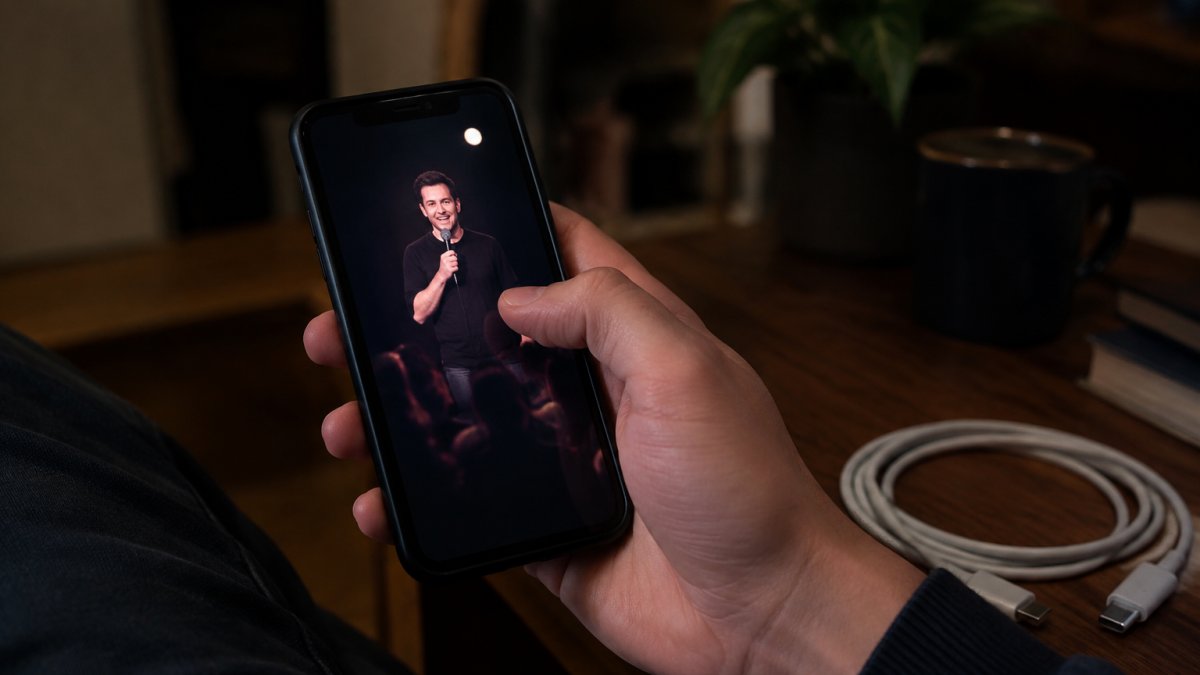
Treat Screen Time as three layers: App Limits cap time per app, Downtime locks apps outside chosen hours and is the most effective setting for evening doomscrolling, and Communication Limits plus Focus modes stop notifications from pulling you back. Kill the pull at the source: in Settings > Notifications, switch off push notifications for every social app. Then add friction that survives a moment of weakness: a Screen Time passcode a friend sets, Downtime for evenings and weekends, social apps moved into a second-page folder or the slower mobile web version, and a dedicated app blocker. Watch out: tapping "Ignore Limit" every time trains the wrong habit, shorten the limit or move the app behind a passcode instead. If you use social media for work, keep the work app with notifications on and move the personal account to the browser. iPhone users who want a cleaner alternative can watch stand-up sets and save clips in a comedy-only app.
On iPhone, Screen Time does the heavy lifting, but each layer works differently on the habit loop.
| Setting | What it does | Note |
|---|---|---|
| App Limits | Caps time per app | Shorten the limit if you keep ignoring it |
| Downtime | Locks apps outside chosen hours | Most effective for evening doomscrolling |
| Communication Limits and Focus | Stops notifications pulling you back | Pair with notifications off |
| Screen Time passcode | Set by a friend | Friction that survives a moment of weakness |
| Notifications settings | Switch off push for every social app | Kills the pull at the source |
| App blocker | Dedicated blocking tool | Adds friction before opening |
What to Do Instead of Doomscrolling (and How to Stop Scrolling TikTok)
The best way to stop doomscrolling is to give your hands and brain something better to do, and the first 72 hours are the part most guides skip. Swap the trigger, not just the app.
The withdrawal phase. The first few days can feel restless and bored, which is common when a habit loop loses its grip. Schedule something for the times you usually scroll, keep your hands busy, and tell one person so the discomfort has a witness.
Replace the routine, keep the reward. Doomscrolling delivers novelty, laughter, and a break from stress, so pick one comedian or channel you actually follow rather than a feed, watch a set or two, then close the app, a set has an end; a feed does not. Swap the scroll for a walk, a book, or a call at the same time each day so the new habit inherits the old cue.
Build an accountability system. Willpower fades; a witness does not. Write down the apps you're limiting, the hours you won't use them, and one person who will check in weekly, the point isn't punishment, it's making the goal visible.
Address the body, not just the brain. If you always scroll slouched on the couch, the posture itself becomes a cue, so stand up, put the phone on a shelf, or leave the room, standing up is one way to shorten a session.
Following a comedian beats following the algorithm. A daily comedy habit can be easier to keep than a vague promise to "use my phone less." If you want a smarter way to find your next favorite comic, this routine for following comedians can make discovery more intentional.
The scroll wins when your phone is the easiest thing to reach. Change that, and the habit loses its grip. Chuckle is built for exactly this: a comedy-only feed, a Comedy Vault for saving the clips you love, and a focused viewing experience without the endless scroll. It's free to download and use. Get started with Chuckle and turn mindless scrolling into a few good laughs.
Frequently Asked Questions
How do I stop mindless scrolling on social media?
Turn off non-essential push notifications, set app time limits, and move social apps off your home screen. Identify your triggers, like boredom or stress, and replace the habit with a specific alternative such as a short walk or opening a comedy app. Even a 30-second pause before tapping an app can break the automatic loop.
How can I stop doomscrolling on my iPhone?
Use Screen Time to set daily limits for your most-used apps, enable Downtime for evening hours, and turn on Focus mode to block notifications. You can also remove the app from your home screen and use the App Library search to add friction. These iPhone settings make avoiding doomscrolling on social media apps easier without deleting your accounts.
What can I do instead of doomscrolling?
Replace the scroll with something that has a clear endpoint: watch a short comedy set, message a friend, stretch for two minutes, or read one article. Choosing content with a natural finish, like a short comedy set, gives your attention a place to land.
